LimeSurvey
LimeSurvey is a free and open source software application that allows the creation of online surveys or forms. It is aimed at both beginners and professionals, as it offers a wide variety of response types, branching based on conditions, templates and custom design. It also includes basic statistical analysis tools for processing the results obtained.
The official user’s guide can be found here.
Installation
From the Control Panel, go to the ‘Install Applications’ section, there you will see all the applications available to install, including LimeSurvey. Just check the ‘Select’ box and indicate:
A domain or subdomain where you want to install it. This domain has to be pointing to the IP address of the server, for this you will have to add an A record in the DNS zone editor of your domain (external operation to MaadiX). Remember that this domain or subdomain does not have to be added in the ‘Domains’ section.
A password to set for the LimeSurvey administration account. Keep it somewhere safe as it will not be mailed for security reasons.
Once you have specified these two parameters you can click on the ‘Install’ button.
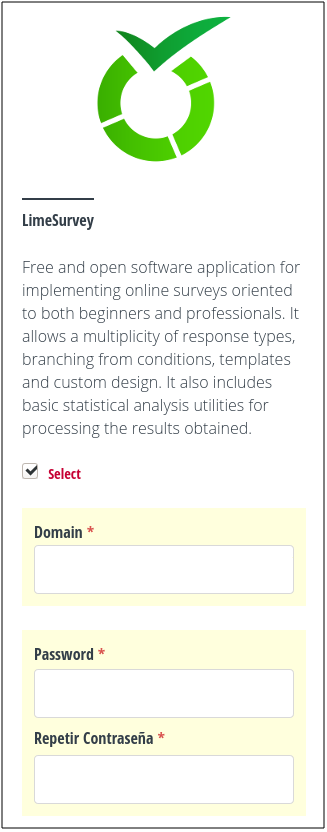
LimeSurvey installation.
After a few minutes you will receive an email (to the address you have configured for the Control Panel administration account) confirming that the installation was successfully completed.
Access
To access LimeSurvey you will need to go to the domain or subdomain you specified during installation. You can also access it through the Control Panel, under ‘My Applications’ > ‘LimeSurvey’ > ‘Go to application’.
You can log in to the administration panel by adding /admin to the end of the domain (for example: lime.example.com/admin) and access with the password you assigned yourself during the installation process; for security reasons it is not sent by email. If you forget your password you can start the password recovery process by clicking on ‘Forgot password?’ and entering the email address of the administration account.
In order to make the password recovery process work, you must first configure the email sending as indicated below. We recommend you to do it as soon as possible.
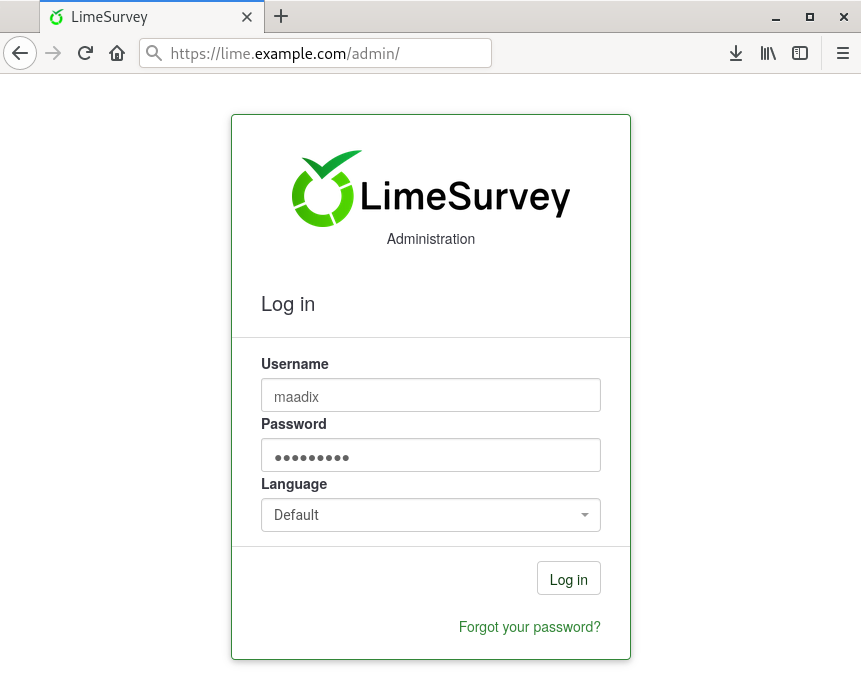
LimeSurvey login.
Domain change
If you need to change the domain or subdomain of LimeSurvey just go to the Control Panel and in ‘My applications’ > ‘LimeSurvey’ > ‘Configure’ to indicate the new domain. This domain has to be pointing to the IP address of the server, for this you will have to add an A record in the DNS zone editor of your domain (external operation to MaadiX). Remember that this domain or subdomain does not have to be added in the ‘Domains’ section.
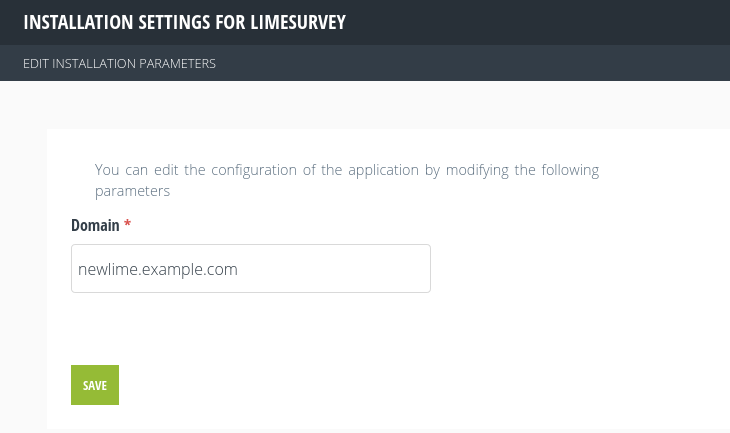
LimeSurvey domain change.
Emails configuration.
The email sending configuration is located in the LimeSurvey administration panel. To access it you must go to the installation domain and add /admin, for example lime.mydomain.com/admin.
To setup the parameters for sending emails you have to go to “Configuration” > “Global” > “Email settings”. There you can check the SMTP option and specify the following settings:
Servidor SMTP: el nombre de tu servidor seguido de :465 (tuservidor.maadix.org:465).
SMTP username: an email account on your server (contact@mydomain.com).
SMTP password: password of the previous email account.
SMTP encryption: SSL/TLS.
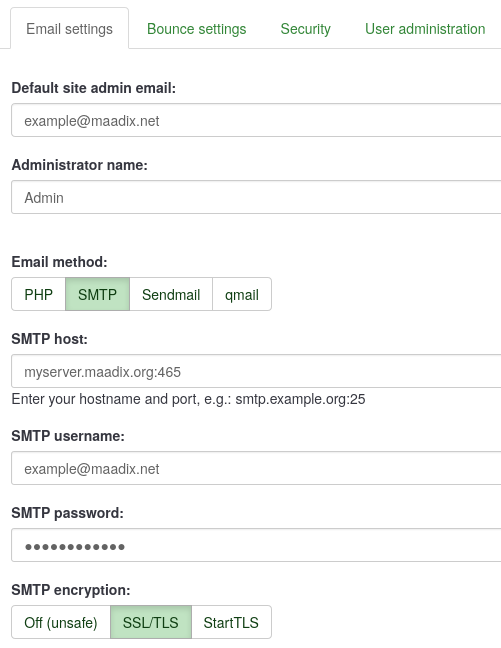
Email sender settings.
You will also have to indicate a valid email account as sender in “Configuration” > “Global” > “Bounce settings”.
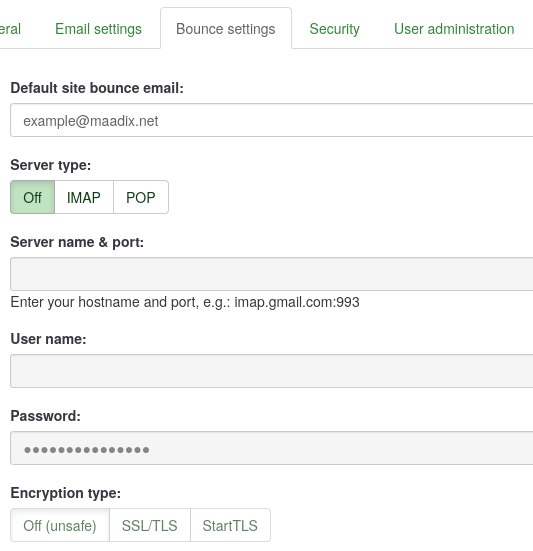
Bounce settings.