Applications
Install applications
From the Control Panel you can install all the applications available in MaadiX. You can check the list in the Install applications section.
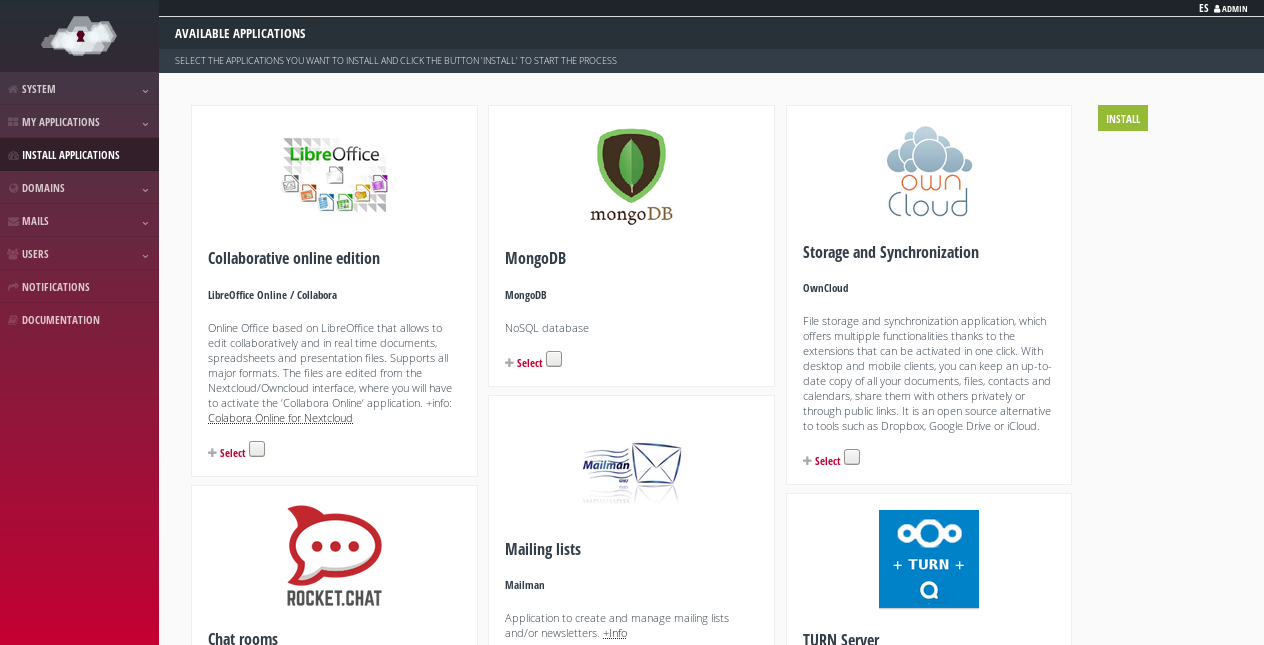
Available applications to be installed.
Most applications (Nextcloud, Jitsi Meet, RocketChat, OnlyOffice, Collabora, Discourse, LimeSurvey, Dolibarr, Etherpad and Mailtrain) need their own domain or subdomain for installation. When you click on Select, a field will appear asking for it. This domain has to point to the IP address of the server, for which you will have to add an A record in the DNS zone editor of your domain (an operation external to MaadiX). If after the installation you want to modify the domain, you can change it in the Control Panel, in the My Applications > Application Name > Configure tab.
Remember that you don’t have to add this domain or subdomain to the “Domains” section of the Control Panel. In fact, if you do so, you will no longer be able to use it for the installation of an application.
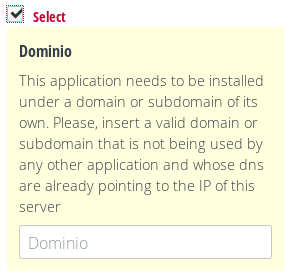
Indicating the domain where an application is going to be installed.
On the other hand, some applications (Etherpad, Owncloud, Rainloop, Mailtrain and Mailman) also require you to set a password for the administration account during the installation process. You will be able to assign the password you want in the field that appears when you select the application to be installed. Remember to save it in a safe place, as it will not be sent by any other means.
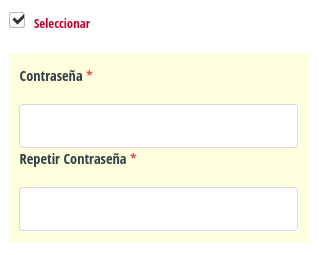
Specifying the password of the administration account of the application.
When the installation is finished you will receive an email to confirm that the entire process was performed correctly. This email will include the access data to the application, but for security reasons it will not include the previously configured password.
Required resources
Each application will consume a certain amount of server resources (RAM, CPU and disk space). You will need to be aware of what resources your server has available before installing a new application. You can go to the System > Details section to see the status of your server and check how many resources are being used.
Before installing an application you will see, in the same box as its description, approximate values for RAM memory and disk space usage. This information can help you assess whether you can install an application on your server without reaching the limit of its resources. If, when selecting an application to install, it is detected that you do not have enough resources, you will also be informed with a warning in the Control Panel.
Please note that the values indicated for each application are approximate and refer to resource usage when the application is not being used, only installed. You will have to consider a margin of at least 500 MB of RAM so that the system can work normally when the applications are in use.
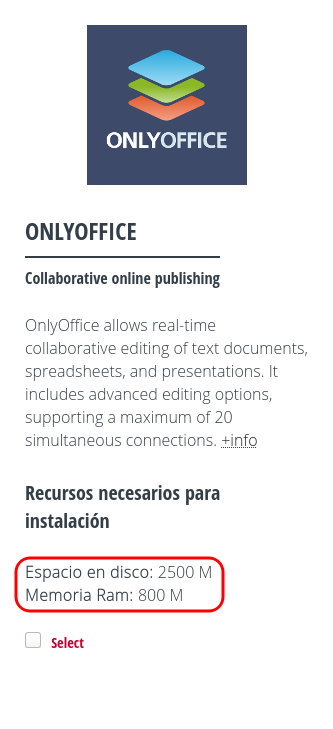
The resources required for an application.
Disable applications
Applications can be disabled or re-enabled from the My Applications > See all page.
When you disable an application the data is not deleted, so if you re-enable it at a later time you will get back the previous settings.
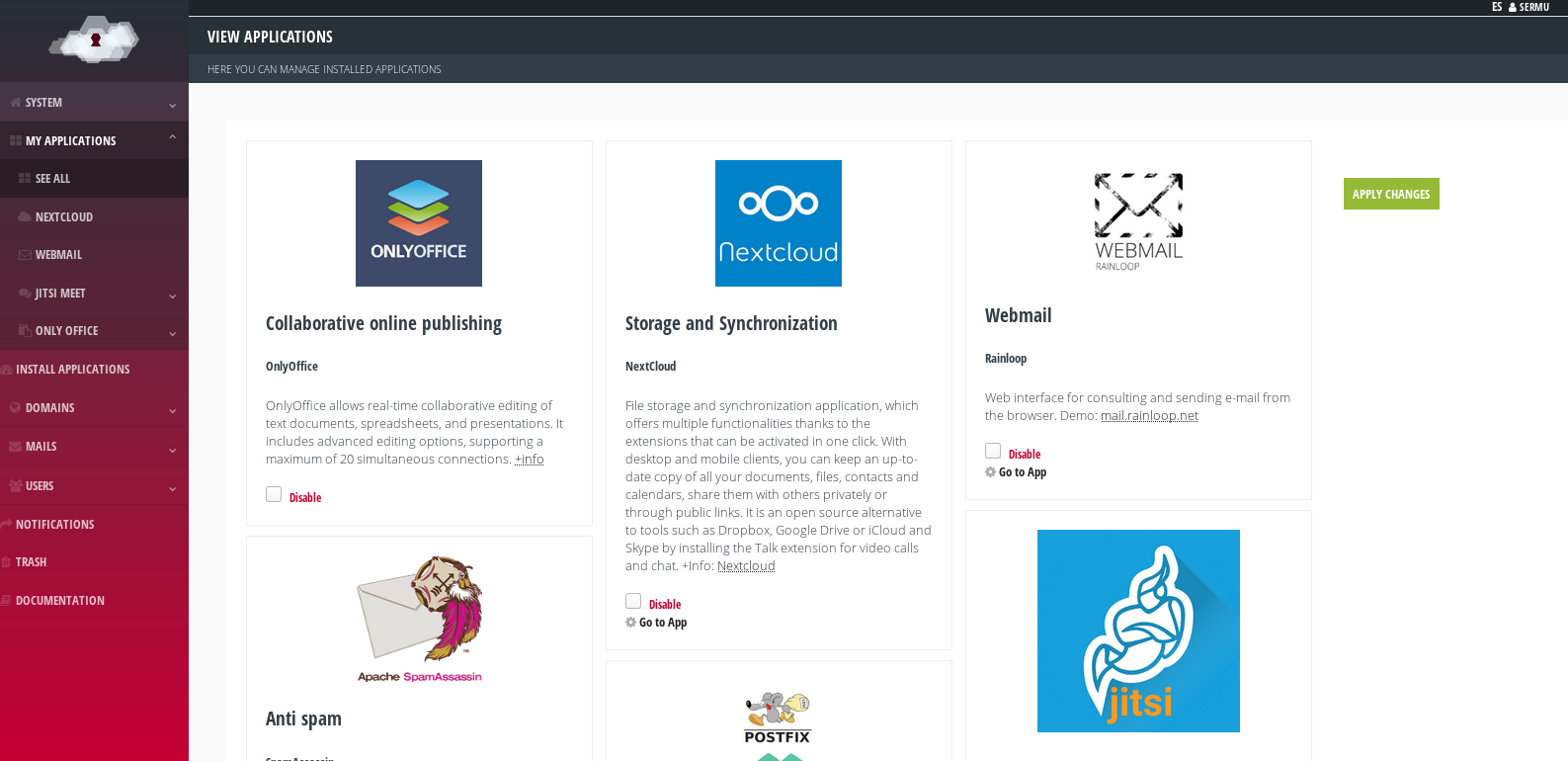
Installed applications.
Other applications
If you want to install other applications not listed in the MaadiX Control Panel, you can do so on your own, since you have full access to the system. However, MaadiX is not responsible for any security risks or incompatibilities that may be generated.
The support service included in any of the MaadiX plans does not cover additional applications.
If you need specific assistance for the installation and maintenance of additional applications, please contact the MaadiX team to evaluate a custom quote.
Setting Files
In general, the configuration of applications installed through the Control Panel is done from their own administration panels (accessible from the browser), without the need to touch system configuration files.
Remember that if you modify configuration files of the services that MaadiX brings integrated into the system (such as Apache, fail2ban, MySQL, SSH, etc.), these will be overwritten with the default configuration that MaadiX sets every time you update the system (“Update” button in the Control Panel).
MaadiX works with Puppet, a software for managing systems in a “declarative” way. Puppet runs on every update and resets all configurations that have not been declared by MaadiX.
If you need any specific configuration that you do not want to be overwritten, please contact the MaadiX team.