DNS
When we register a domain, there is a section in its configuration called DNS. The DNS allow to turn domain names understandable by humans into numbers that correspond to the different devices connected and publicly accessible on the Internet. There are different types of content that a server can display. Among them, the most common are websites and email. For these services to work properly and from any location using names rather than numbers, it is necessary to make public the device on which the services are hosted. This communication is done by properly configuring the DNS records.
DNS records are configured from the interface provided by your domain provider. This means that there may be slight differences in the syntax required by each. In this tutorial we have tried to cover all possible options.
Remember that MaadiX is not a domain provider and does not offer a DNS zone editor.
Web pages
Type A record
To make a website available by visiting your domain from a browser, the A record value of the domain’s DNS must be the same as your server’s IP.
In the second line we are specifying in the column ‘Name’ the name of the subdomain. As you can see, it’s not necessary to specify the value of the domain, so we’ll use ‘subdomain’ instead of ‘subdomain.example.com’.
The ‘Value’ column refers to the IP. You will need to replace this example value with the IP of your server. You can find this value on the main page of the control panel or by going to the ‘Domains’ page and clicking on the ‘View’ link in the DNS column for the domain you want to configure.
Type |
Name |
Value |
|---|---|---|
A |
@ |
8.8.8.8 |
A |
subdomain |
8.8.8.8 |
Type AAAA record
If you have IPv6 enabled on your server, you can also add the corresponding record to make your domain accessible via IPv6.
To do this, you need to create a AAAA record with the IPv6 address assigned to your server. You can find this address on the main page of the control panel or in the DNS details of the domain, just like you would for IPv4.
Type |
Name |
Value |
|---|---|---|
AAAA |
@ |
2a01:1450:4003::200e |
AAAA |
subdomain |
2a01:1450:4003::200e |
Mail server
The DNS configuration for the mail service is more complex than the previous one, and involves the activation of more than one records for proper functioning. Some of these records are optional, but their absence could cause your emails to be marked as spam. The records you will have to configure are 3:
MX
SPF
DKIM
You will find the correct values for each of them in the control panel by going to ‘Domains’>’View Domains’ tab and clicking in ‘View DNS’.
MX Record
This record is strictly indispensable. For the e-mail to be managed by your server and not by another external service, the value of the MX record of the DNS of your domain or subdomain will have to be the same as the full name of your server in MaadiX: example.maadix.org. Keep in mind that some domain providers may not require you to add the dot after the value.
Example MX records for the domain example.com and the subdomain subdomain.example.com on a maadix server named example.maadix.org:
Type |
Name |
Value |
Priority |
|---|---|---|---|
MX |
@ |
example.maadix.org. |
10 |
MX |
subdomain |
example.maadix.org. |
10 |
Example MX records for the domain example.com and the subdomain sub.example.com in text format (for those providers that do not provide a form):
@ 10800 IN MX 10 example.maadix.org.
subdomain 10800 IN MX 10 example.maadix.org.
SPF Record
The SPF (Sender Policy Framework) is a TXT-type record that specifies which servers can send email on behalf of your domain. Email service providers often require valid SPF records. A missing or incorrect SPF record can cause your email to be sent to the spam folder. Some operators may even block your emails completely.
Type |
Name |
Value |
|---|---|---|
TXT |
@ |
“v=spf1 mx ip4:8.8.8.8 ip6:2a01:1450:4003::200e a:example.maadix.org ~all” |
TXT |
subdomain |
“v=spf1 mx ip4:8.8.8.8 ip6:2a01:1450:4003::200e a:example.maadix.org ~all” |
DKIM Record
The purpose of DKIM (DomainKeys Identified Mail) is to ensure that a message sent by example.com is actually from example.com. To do this, DKIM automatically adds a digital signature to each message. This signature is based on a private key known only to the server that sends the mail. The receiving server can use the public key (included in the DKIM record of the DNS) to decode the signature and ensure that the message has not been altered. Although the initial purpose was security, many mail providers, including Gmail, Yahoo, and others, use the DKIM information to validate the quality and authenticity of the message. If the DKIM signature fails, there is a very high probability that the message will be sent to the spam folder.
Given the complexity of its configuration, it is better to make sure that you have correctly inserted your value in the DNS records since, as with SPF records, it is better not to have any DKIM records than to have an incorrect one.
Unfortunately, this type of record has a different syntax depending on the provider you have registered your domain with. Here are some examples of valid syntax for DKIM. You will have to try until you find the right one for your provider, or contact them directly to guide you through the process. The value of the string p=… is the public key, which changes for each domain. You will find the correct string in the DNS section corresponding to your domain or subdomain in the control panel.
This record has one particularity: the exact name you need to insert in the ‘Name’ field changes depending on how your domain provider requests it. Check which of these 4 cases applies to you, for the domain example.com and for the subdomain subdomain.example.com:
Case |
‘Name’ field |
When is it used? |
|---|---|---|
1 |
|
Main domain (example.com) and your provider does not ask you to include the domain name. |
2 |
|
Main domain (example.com) and your provider does ask you to include the domain name. |
3 |
|
Subdomain (subdomain.example.com) and your provider does ask for the full name. |
4 |
|
Subdomain (subdomain.example.com) and your provider does not ask for the full name. |
In all 4 cases, the ‘Type’ field is always TXT and the ‘Value’ field is always the same: the key that starts with "v=DKIM1; k=rsa; p=..." which you will find in the DNS section of your domain in the control panel (it is different for each domain). Remember that some providers do not require quotation marks for the value of the ‘Value’ field.
If your domain provider does not have a form with separate ‘Name’ and ‘Value’ fields, but a single text box where you paste the complete record, use one of these full lines directly (corresponding to the 4 cases above), replacing it with the real key for your domain:
default._domainkey 10800 IN TXT    "v=DKIM1; k=rsa; p=MIGfMA0GCSqGSIb3DQEBAQUAA4GNADCBiQKBgQDZTroWVFpkfXklFulqg8pdg/cWS+ORgoi1x97l5NyqlqL7R1qazoIVQ63TYUS8yjxU87z4FAr/zb/+p2ayk+wVqXA7twWLuHPhEHdiBQM5cEbaPX/Q3fMYULTPkmuVLA/aAcNUr3xagyNfpOzUmUAvJfOfozaSik9/ZmHRFFvzdwIDAQAB"

default._domainkey.example.com. 10800 IN TXT    "v=DKIM1; k=rsa; p=MIGfMA0GCSqGSIb3DQEBAQUAA4GNADCBiQKBgQDZTroWVFpkfXklFulqg8pdg/cWS+ORgoi1x97l5NyqlqL7R1qazoIVQ63TYUS8yjxU87z4FAr/zb/+p2ayk+wVqXA7twWLuHPhEHdiBQM5cEbaPX/Q3fMYULTPkmuVLA/aAcNUr3xagyNfpOzUmUAvJfOfozaSik9/ZmHRFFvzdwIDAQAB"

default._domainkey.subdomain.example.com. 10800 IN TXT    "v=DKIM1; k=rsa; p=MIGfMA0GCSqGSIb3DQEBAQUAA4GNADCBiQKBgQDZTroWVFpkfXklFulqg8pdg/cWS+ORgoi1x97l5NyqlqL7R1qazoIVQ63TYUS8yjxU87z4FAr/zb/+p2ayk+wVqXA7twWLuHPhEHdiBQM5cEbaPX/Q3fMYULTPkmuVLA/aAcNUr3xagyNfpOzUmUAvJfOfozaSik9/ZmHRFFvzdwIDAQAB"

default._domainkey.subdomain 10800 IN TXT    "v=DKIM1; k=rsa; p=MIGfMA0GCSqGSIb3DQEBAQUAA4GNADCBiQKBgQDZTroWVFpkfXklFulqg8pdg/cWS+ORgoi1x97l5NyqlqL7R1qazoIVQ63TYUS8yjxU87z4FAr/zb/+p2ayk+wVqXA7twWLuHPhEHdiBQM5cEbaPX/Q3fMYULTPkmuVLA/aAcNUr3xagyNfpOzUmUAvJfOfozaSik9/ZmHRFFvzdwIDAQAB"
To check if the DKIM record you have created for your domain is correct, you can go to the following page, enter your domain name + :default and select ‘DKIM Lookup’ from the drop down menu.
If your domain were example.com, you should insert example.com:default.
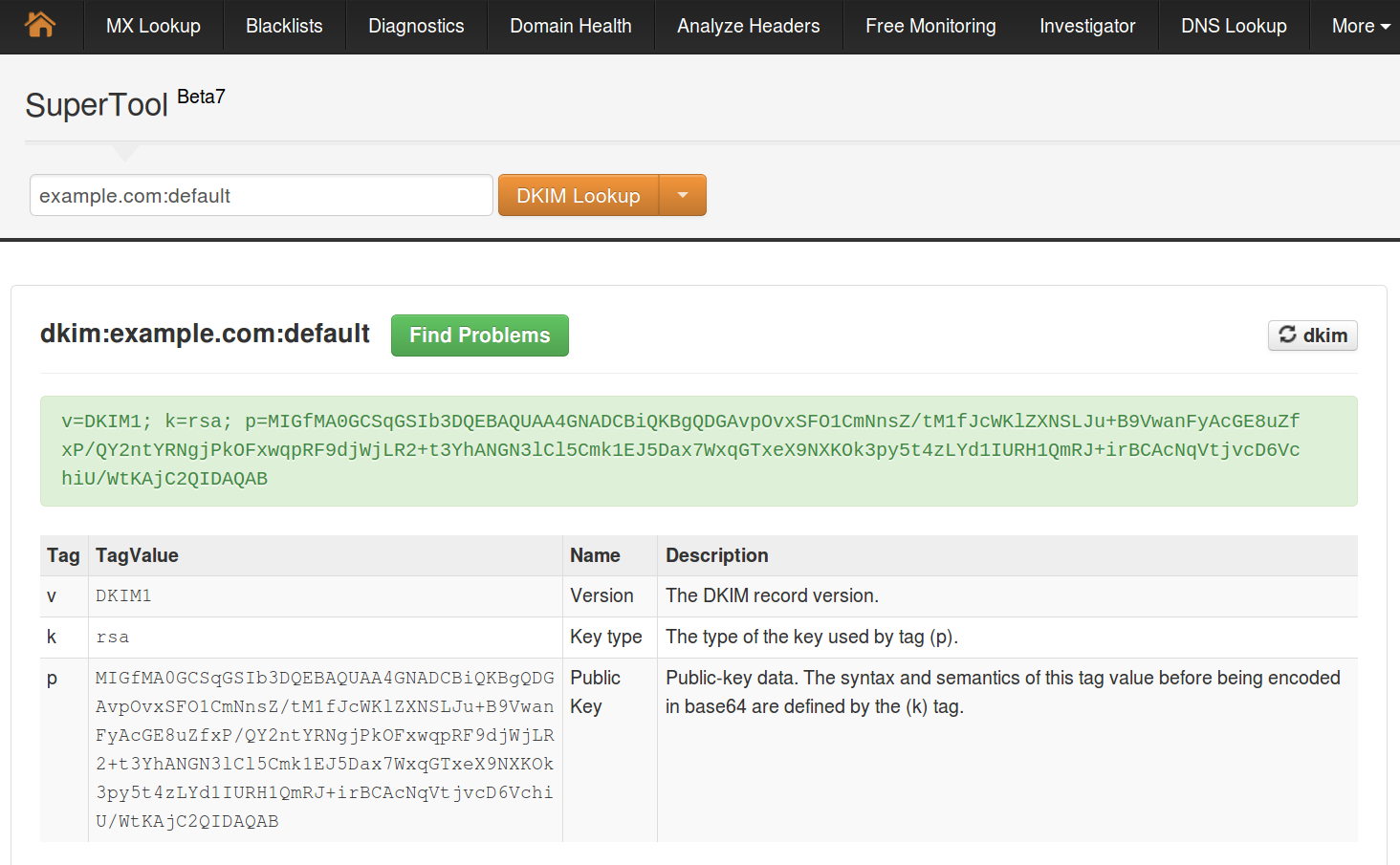
Online DKIM check