2FA - Two-Factor Authentication
Two-step authentication or “Two-Factor Authentication” (2FA) is a mechanism that protects access to the Control Panel. Enabling 2FA is mandatory: the first time you access the Control Panel after activating your account, the system will require you to set it up before continuing.
Two methods are available:
OTP application: a temporary code is generated in a linked mobile application.
Email: the code is sent by email on every login.
Activation
The first time you log in, the system will automatically redirect you to the 2FA configuration page (System > 2FA), where you will need to choose the method and complete the linking process.
Using an OTP application
To use this method you need an authentication application installed on your mobile device, for example:
FreeOTP: download on F-droid; download on Google Play; download on App Store (iOS).
andOTP: download on F-droid; download on Google Play.
Aegis Authenticator: download on F-droid; download on Google Play.
Tofu Authenticator: download on App Store (iOS).
When you activate this method, a QR code will be displayed that you must scan with the application. Once linked, enter the code generated by the app to complete the activation.
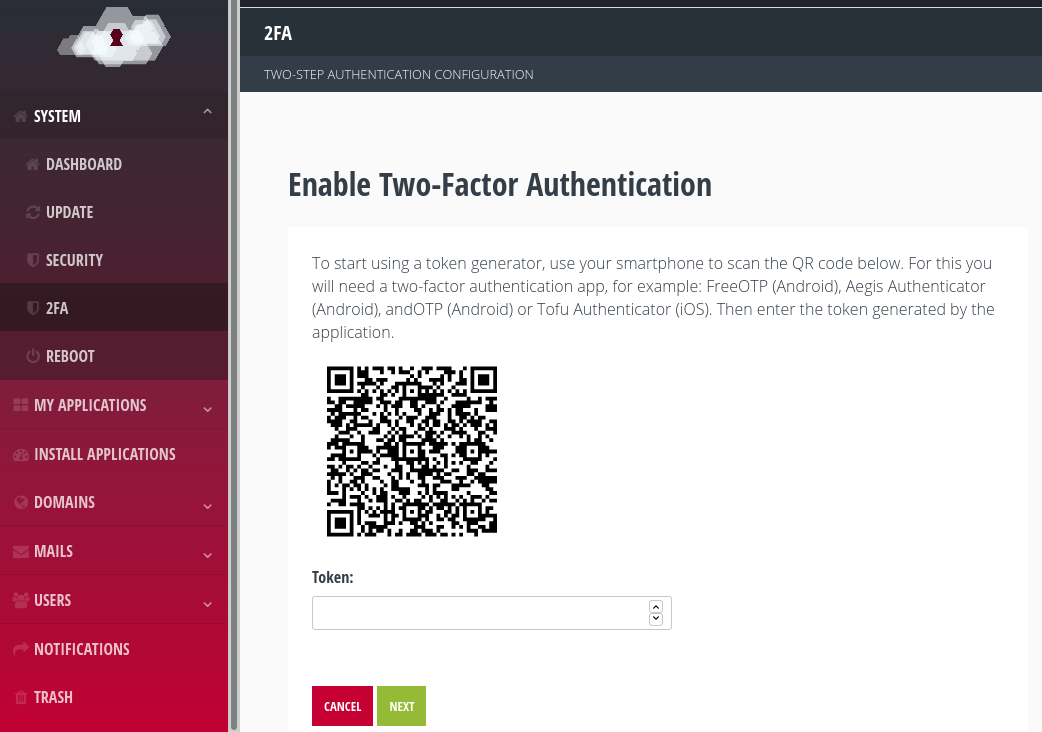
Activation of 2FA using an OTP application.
Using email
The verification code is sent by email on every login. By default, the email address associated with the Control Panel administration account is used, although it is possible to set a different address during activation.
Usage
Once 2FA is enabled, each login will require two steps:
Enter the Control Panel login credentials.
Enter the verification code, either the one generated by the OTP application or the one received by email.
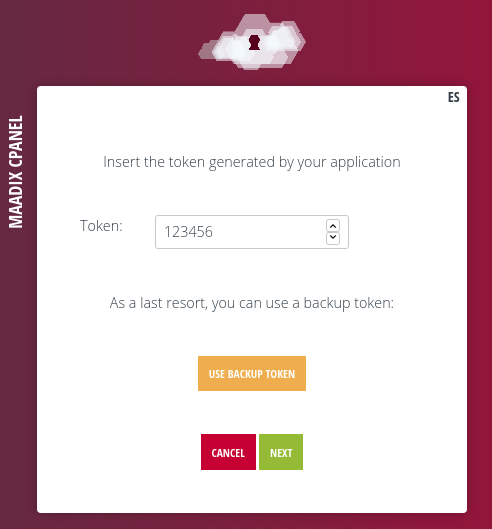
Logging in with 2FA.
If you do not have access to the OTP application or to your email, you can use a backup code. To obtain them, go to System > 2FA, “Backup codes” section, and click on Show codes. If they have not been generated yet, click on Generate backup codes. Each code is for single use only; generate a new set before you run out of them.
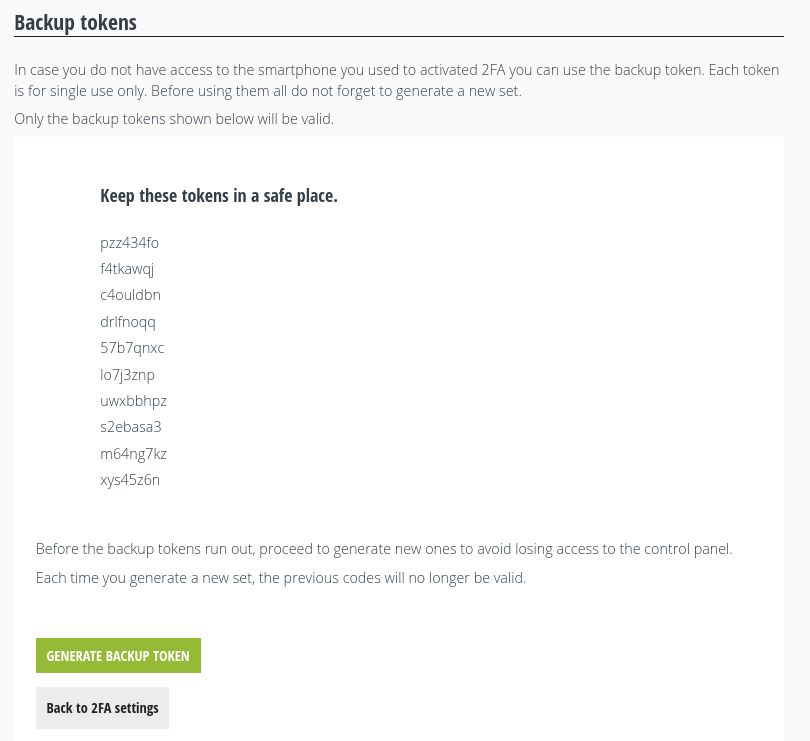
Backup Tokens
Changing method
To change the 2FA method (for example, switching from email to an OTP application, or changing the email address that receives the code), you need to disable the active 2FA and enable it again choosing the new configuration.
Disabling
From the Control Panel
To disable 2FA, go to System > 2FA and click on Disable Two-Factor Authentication. The system will ask for confirmation before proceeding.
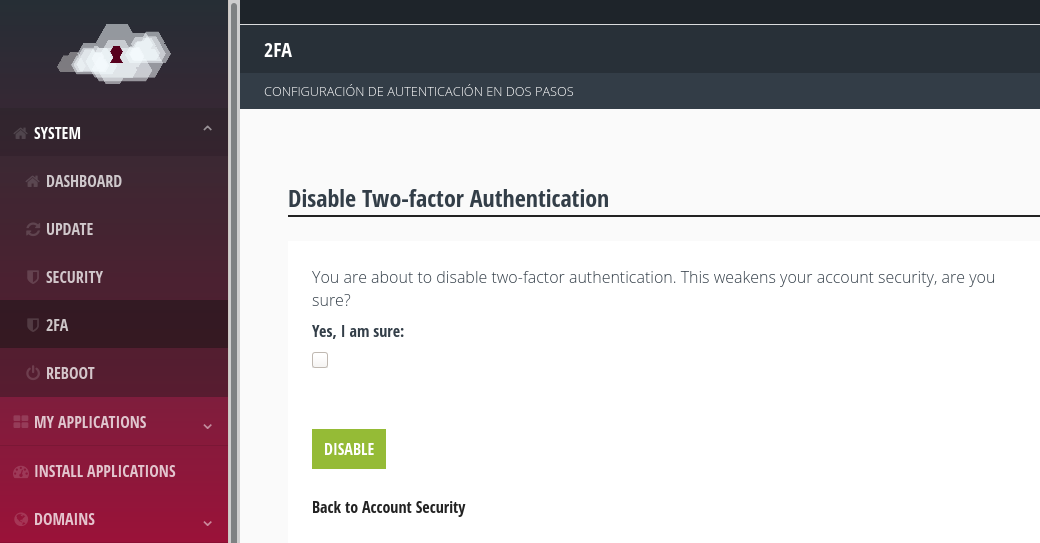
Disabling 2FA from the Control Panel.
Using the command line
If you do not have access to the Control Panel, you can disable 2FA via SSH by logging in with the Superuser account:
Log in via SSH:
ssh superusuarix@miservidor.maadix.orgGet permissions of Superuser:
sudo suLog in with the mxcp account (owner of the application):
sudo -u mxcp -sGo to the Control Panel directory:
cd /usr/share/mxcp/Activate the virtual environment:
source venv3/bin/activateGo to the application directory:
cd maadix-cpanelExecute the command for disabling 2FA (replace USER_CPANEL with the Control Panel account):
./manage.py two_factor_disable USER_CPANELDeactivate the virtual environment:
deactivate.Log out:
exit