Dolibarr
Dolibarr offers the functionalities of an ERP (Enterprise Resource Planning System) and a CRM (Customer Relationship Management System). It facilitates the management of contacts, invoices, inventory, orders, payments, etc. through modules that are activated according to the needs of each project. It stands out for being simple and oriented to small/medium companies or organizations.
You can find more information on their website and try a demo here.
Installation
From the Control Panel, go to the Install applications section, where you will see all the applications available for installation, including Dolibarr. Tick the Select checkbox, indicate a domain or subdomain where you want to install it, and click on the Install button.
This domain has to point to the IP address of the server; to do this you will have to add an A record in the DNS zone editor of your domain (an operation external to MaadiX). Remember that you do not have to add this domain or subdomain in the Domains section.
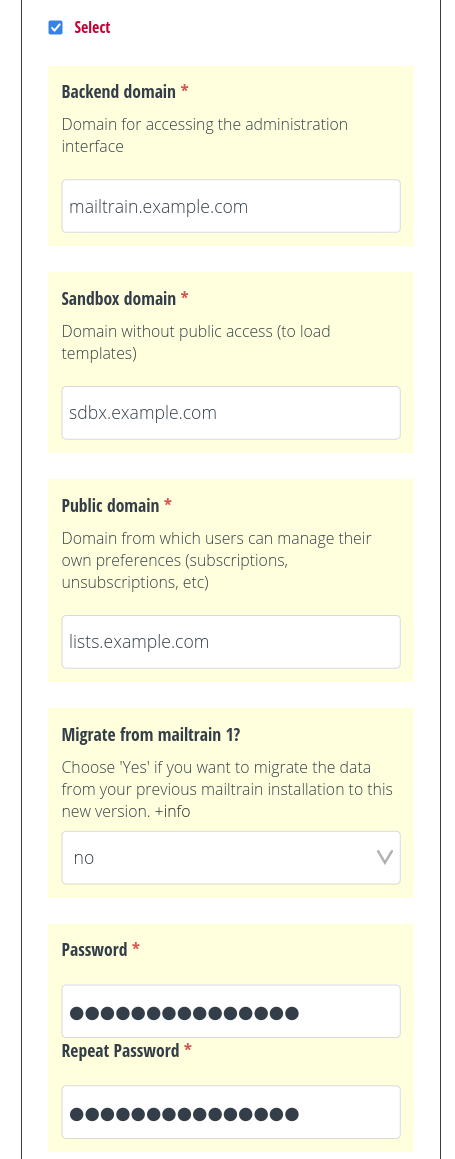
Dolibarr installation from the Control Panel.
Then you will have to go to the domain or subdomain you specified for the installation and follow the steps that are indicated.
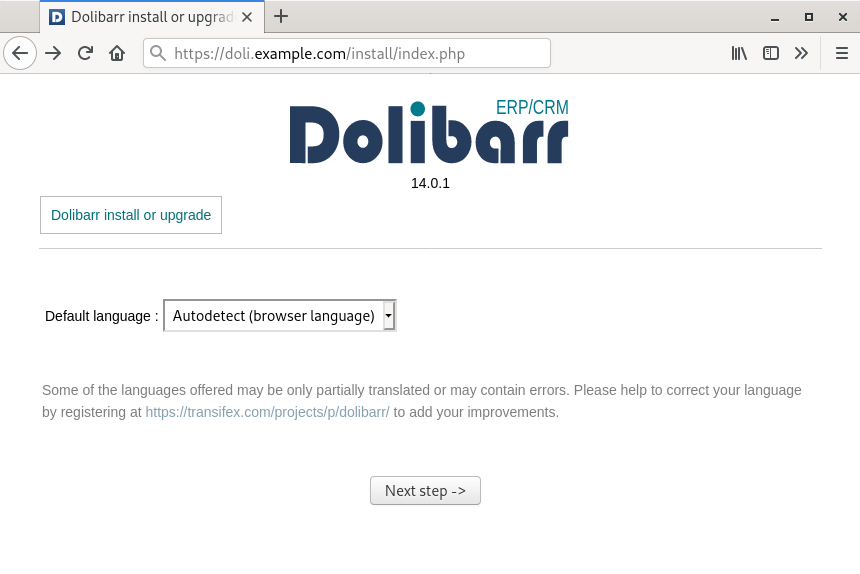
Start the Dolibarr installation wizard.
During the process you will be asked to assign a password for the administration account. Save it in a safe place, as you will not be able to recover it until you correctly configure the email sending parameters indicated further below.
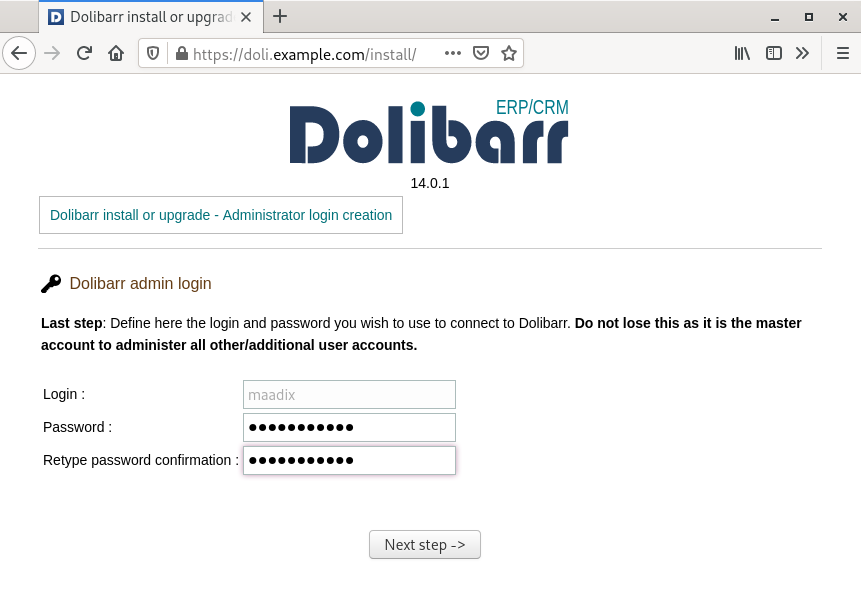
Administration account password creation.
Access
To access Dolibarr you will have to go to the domain or subdomain you specified during the installation. You can also access it through the Control Panel, in My Applications > Dolibarr > Go to application.
You will be able to log in with the administration account and the password assigned during the installation process; for security reasons, it is not sent by email. If you forget your password, you can start the recovery process by clicking on Forgotten password? and entering the name of the administration account.
For the password recovery process to work, you must first configure an email address associated with this account and the email sending parameters explained below. We recommend doing this as soon as possible.
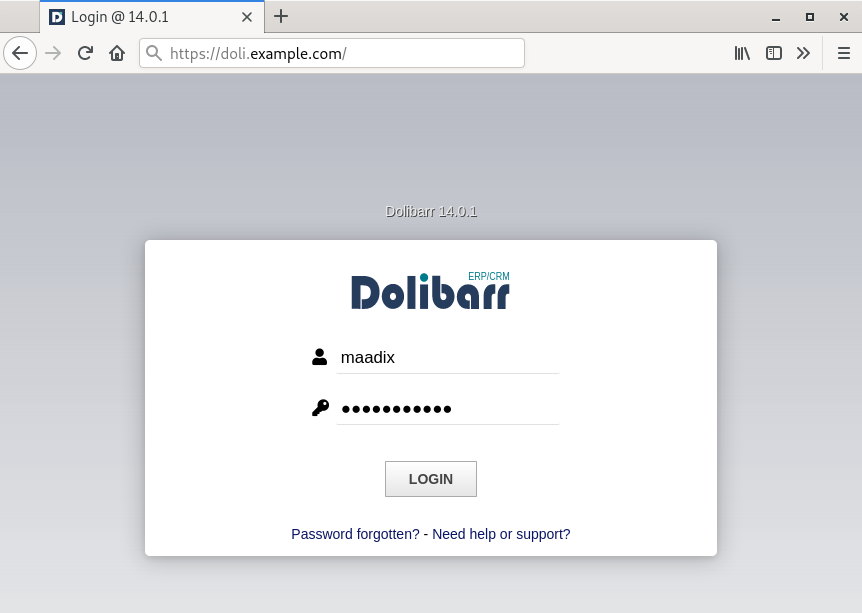
Logging in to Dolibarr.
Email configuration
First of all, it is recommended to add an email address to the administration account so that you can recover the password if you forget it. To do this, click on your account name (top right) > Card > User and click on Modify. In the Email section, add an email account and click on Save.
Secondly, the email sending configuration is found in Setup (left menu) > Emails, and in the Outgoing emails section you will have to indicate the following parameters:
Email sending method: SMTP/SMTPS socket library.
SMTP/SMTPS Host: your server name (yourserver.maadix.org).
SMTP/SMTPS Port: 465.
SMTP ID: an email account on your server (contact@example.com).
SMTP Password: password of the previous email account.
Use TLS (SSL) encryption: Yes.
Use TLS (STARTTLS) encryption: No.
Authorise les certificats auto-signés: No.
Sender email for automatic emails: the email account of your server indicated on SMTP ID (contact@example.com).
These instructions are for when you use the mail server already installed on your own MaadiX server. The parameters are similar to those you would specify when configuring a mail client, as explained in the email documentation (only the part referring to outgoing SMTP mail).
If you prefer to configure another mail server for sending, you can check common configuration examples for Gmail, iCloud, Gandi, Outlook, etc. in the official documentation.
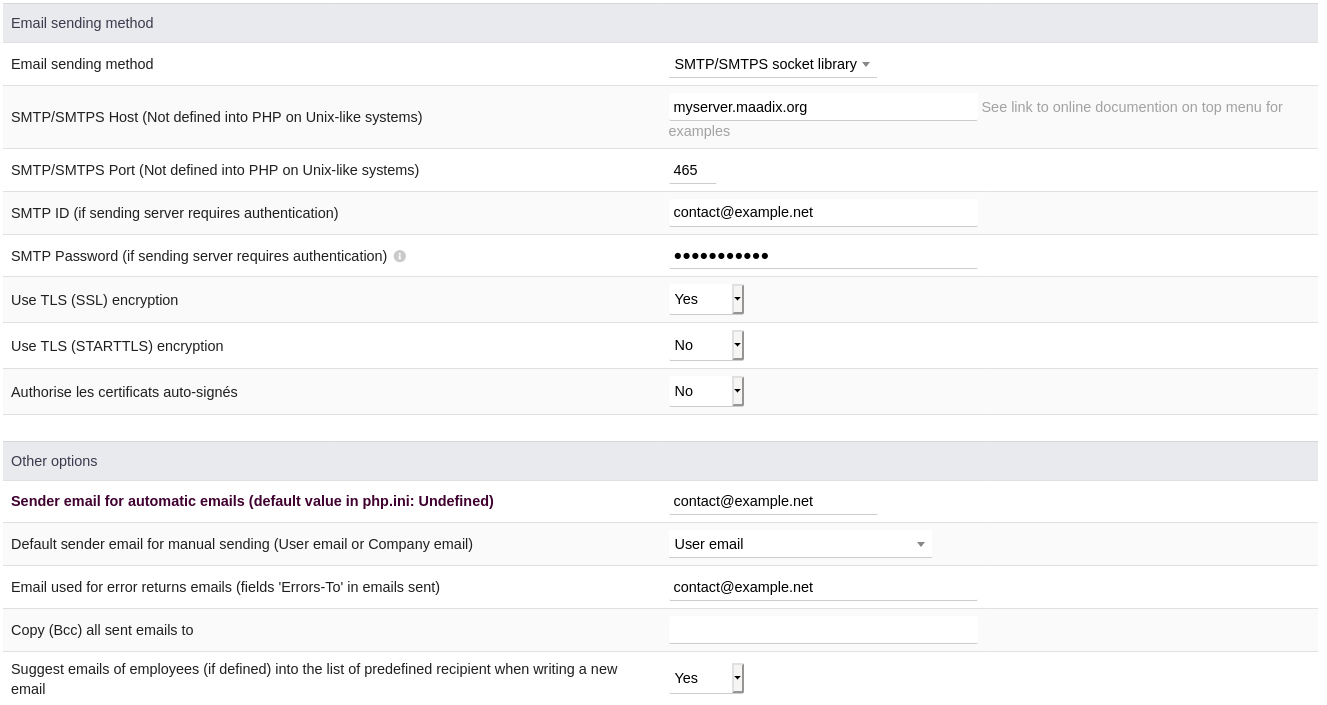
Email sending configuration.